Introduction to software version control
The need for source code management
- Source code is the core of any software project.
- These projects have a long lifespan, with numerous releases containing new functionalities and bug fixes.
- Throughout this lifespan, the development team needs a way to work in parallel while sharing a common code base.
Manual source code management
- Relies on shared places (local or cloud-based) where snapshots of the code base are regularly pushed by developers.
- Highly impractical: no individual history of files, no release management, no handling of conflicts (simultaneous updates of a file)…
Version Control Systems
Dedicated source code management tools, often called Version Control Systems, offer developers the ability to:
- share and update a common code base;
- work on new features and fixes without breaking current versions;
- track who did what;
- handle conflicts;
- and more!
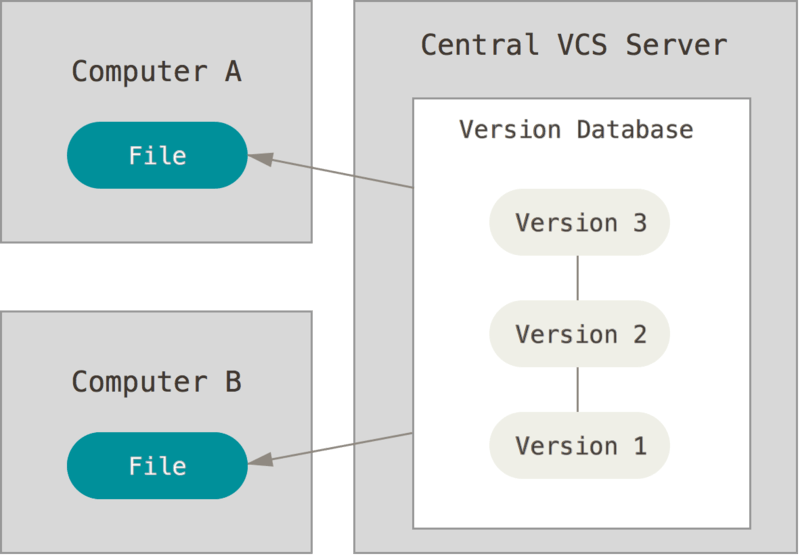
Centralized VCS
- Uses only one repository, accessed by developers in a client/server way.
- Repo administration (security, backups…) is easy.
- Synchronization is impossible in a disconnected scenario.
- Examples: CVS, SVN, ClearCase.
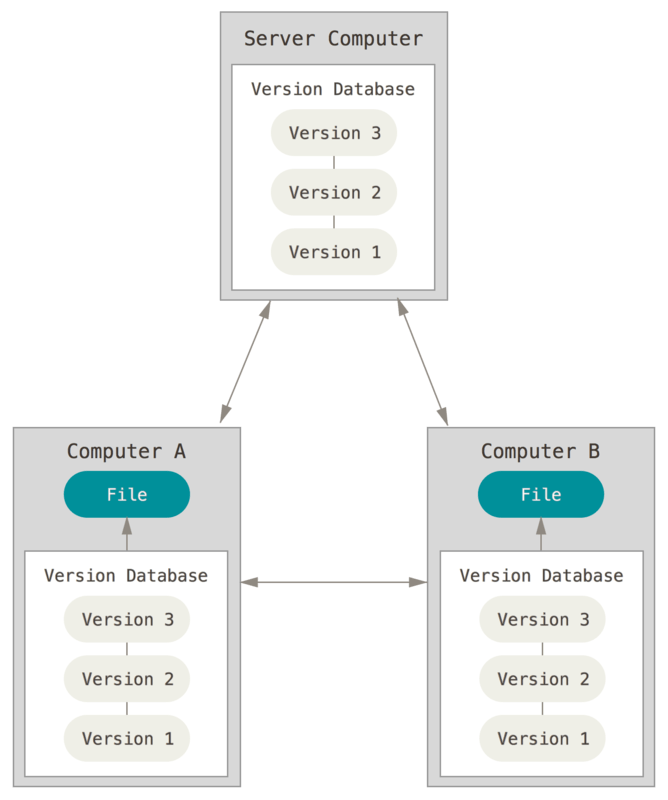
Decentralized VCS
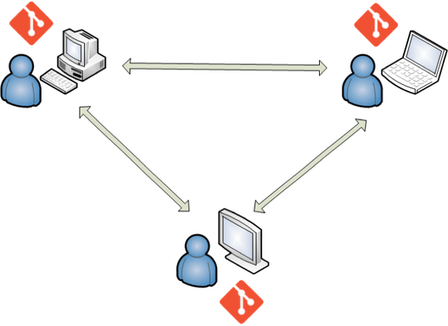
- Each developer has their own code repository, including history and all other metadata.
- Repositories are frequently synchronized in a peer-to-peer way.
- Disconnected workflows become possible.
- Examples: Git, Mercurial.
Git fundamentals
Git in a nutshell
- Free and open source DVCS published in 2005 to manage the Linux kernel source code.
- Has become the standard tool for versioning software.
- Can handle any text-based project: knowledge bases, books, etc.
- Designed as a command line tool.

Git is not (that) hard
The Git repository
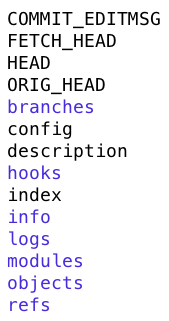
- Storage place for all versioning data: source code, history, versions, remote addresses…
- Corresponds physically to a
.git/subdirectory in the project folder, with a complex internal structure.
The .gitignore file
- Some project files don’t need to be versioned:
- generation output;
- local settings;
- …
- Added in the root folder, the
.gitignorefile defines files and folders excluded from the repository. - This repository contains standard
.gitignorefiles for many environments: Python, .NET, JavaScript…
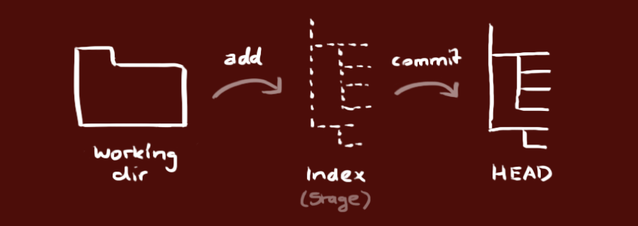
The Git workflow
- Update files in project folder, aka working directory.
- Add files to index, aka staging area.
- Commit indexed files into the current branch, aka HEAD.
Branches
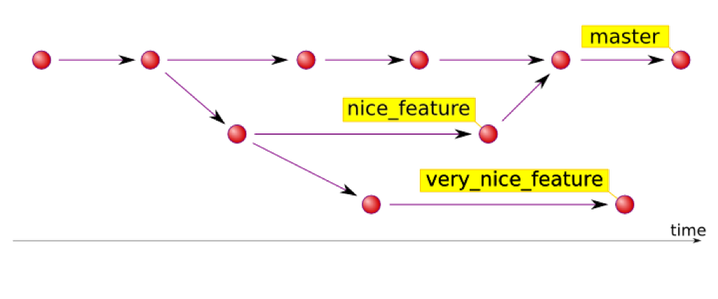
Branches allow parallel work in isolated contexts, for:
- new features;
- bug fixes;
- experimentations;
- …
Working with branches
- Only one branch can be active at a time.
- The content of a branch can be merged into another. Once merged, a temporary branch should be destroyed.
- The default branch is named
master(sometimes renamedmain). In general, it is considered the “production” branch and must be kept stable: commits or merges on this branch must not introduce generation errors or regressions.
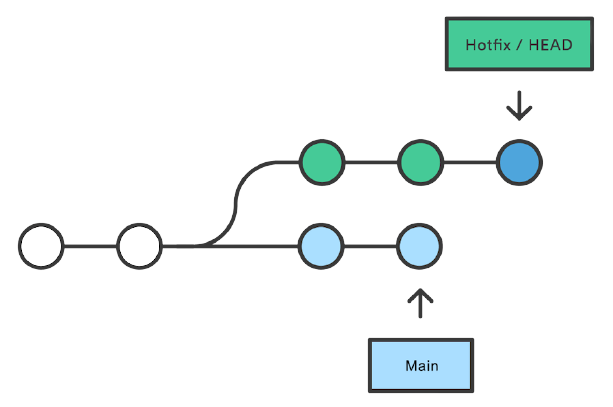
HEAD
HEAD is an alias to the most recent commit of the active branch.
Under the hood
- Git uses the SHA-1 hash of content to create references to commits.
- A commit object stores the metadata about a commit, such as the parent, the author, timestamps and references to the file tree of this commit.
Git LFS
- Large File Storage: Git extension for versioning large files.
- The files live on an external server. Only references to them are stored in the Git repository.
- Usage examples: audio and graphical assets, datasets…
Collaborating with Git
Collaboration workflow
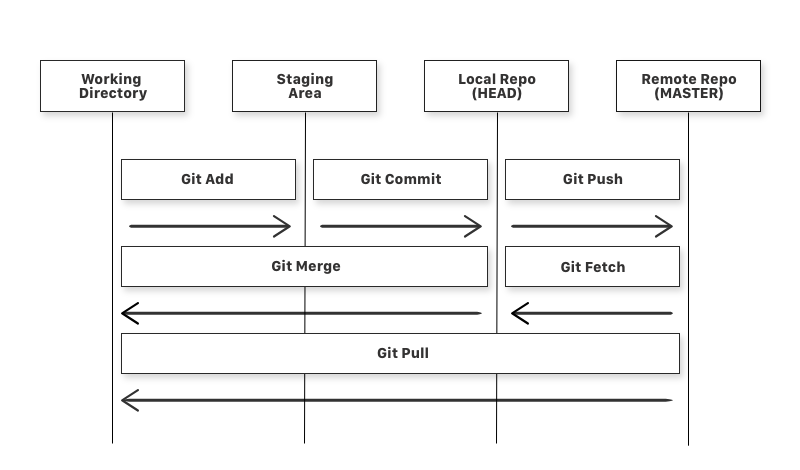
- Developers work locally, regularly committing their code into their local repo.
- Repos are kept in sync through specific commands.
Remote repositories
Git repos that are hosted somewhere on the Internet or local network.
Can be:
- cloned to create a local copy;
- fetched to obtain remote updates, that can be merged into a local branch thereafter;
- pushed to to send local updates.
Identified by a remote alias (named origin after cloning a repo).
Remote Git workflow
Pulling changes
- Pulling = fetching & merging.
- Creates a new merge commit.
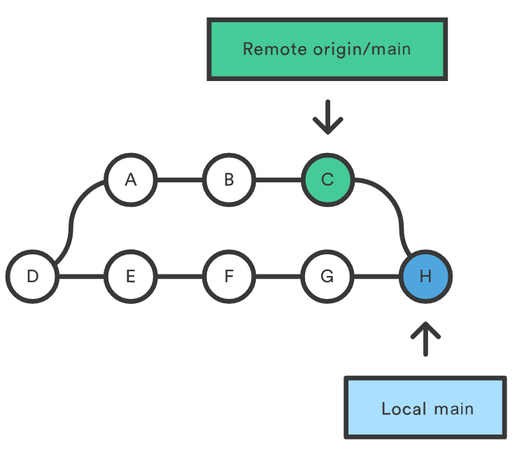
Conflicts
- Simultaneous file updates on different machines can result in conflicts during repos syncing.
- Git can resolve some of them by automerging files… But not all!
Manual conflict management
- Typically, the second developer trying to push his/her updates receives a “non fast-forward” error.
- He/she has to pull remote updates first.
- Files Git cannot automerge contain conflict markers. A manual merging is needed before committing and pushing again.
<<<<<<< HEAD
# My Git project
=======
# My git project
>>>>>>> c1129dfbbe585fc94978be38625b5ae7f63474bf
Git from the command line
Configuration
| Command | Role |
|---|---|
git config --global user.email "{email}" | Set user email |
git config --global user.name "{firstname lastname}" | Set user name |
Setup
| Command | Role |
|---|---|
git init | Create an empty repository in the current folder |
git clone {url} | Clone an existing repository located at {url} |
Working locally
| Command | Role |
|---|---|
git status | Show status of working directory and index |
git add {file} | Add {file} to index |
git add -A | Add all new or modified files to index |
git commit -m "{message}" | Commit indexed files to current branch |
git log | Show commit history |
Managing branches
| Command | Role |
|---|---|
git branch | List existing branches |
git branch {branch} | Create a new branch named {branch} |
git checkout {branch} | Switch to {branch} |
git merge {branch} | Merge {branch} commits into the current one |
git branch -d {branch} | Delete {branch} |
Undoing things
| Command | Role |
|---|---|
git checkout {file} | Overwrite {file} with latest committed version |
git reset {file} | Remove {file} from index |
git reset | Empty index |
git reset --hard HEAD~{n} | Return to {n}-to-last commit, losing all updates |
(More details and options here and here)
Collaborating
| Command | Role |
|---|---|
git remote add {alias} {url} | Add a remote repository |
git remote -v | List remote repositories |
git pull {alias} {branch} | Fetch & merge remote commits into {branch} |
git push {alias} {branch} | Push {branch} commits to a remote repo |
Additional resources
- What is version control?
- Git - the simple guide
- Learn Git branching
- Git cheat sheet
- Another Git cheat sheet
- Yet another Git cheat sheet
- The Git game
- Oh sh.t, Git!?!
GitHub
GitHub in a nutshell
- GitHub is a code hosting platform for version control and collaboration.
- Its main purpose is the hosting of Git repositories.
- Launched in 2008, it was acquired by Microsoft in 2018 for $7.5 billion.
- As of December 2021, it has approx. 73 million users worldwide.
- GitHub is the central hub for open source projects.
- Main alternatives are BitBucket and GitLab.
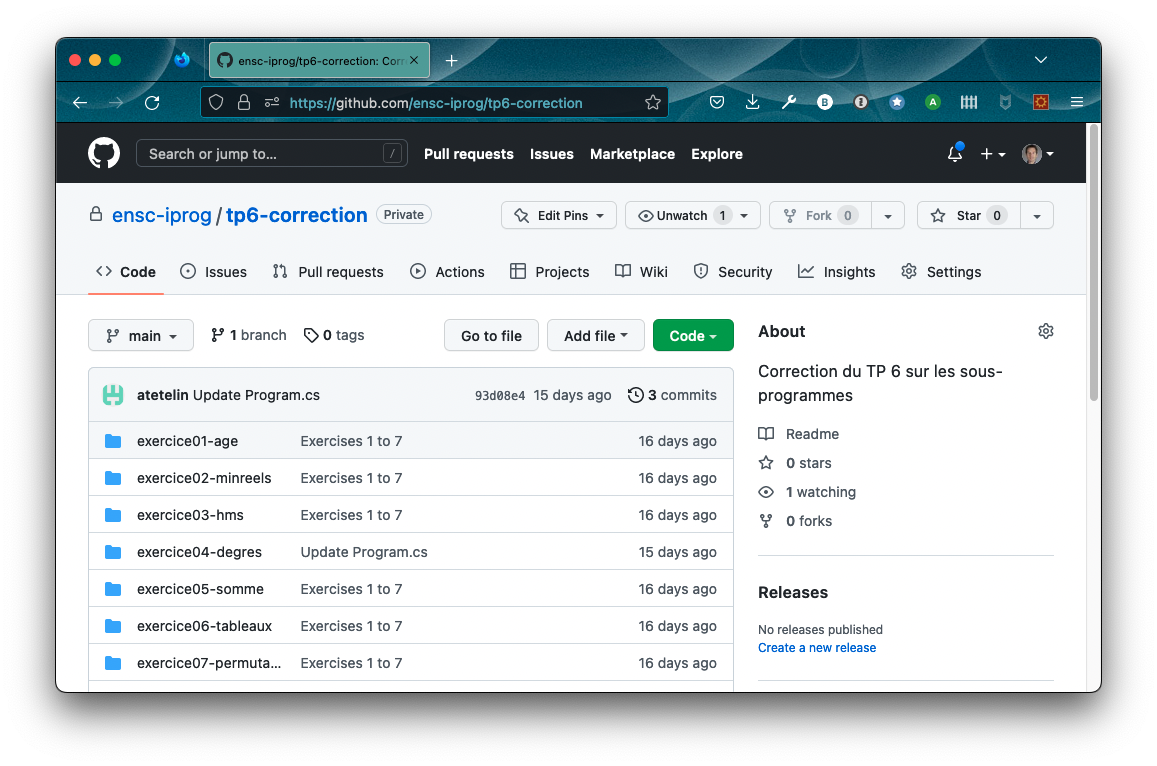
GitHub repo example
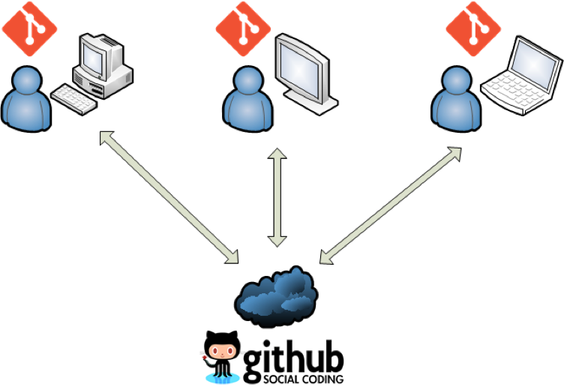
The shared repository model
- A GitHub repo centralizes team updates.
- Efficient for small teams and small-to-average-sized projects.
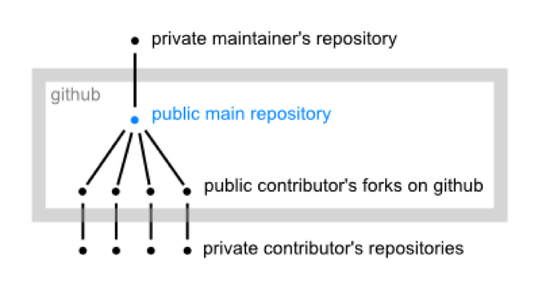
The “fork & pull” model
- Each developer forks ($\approx$ clone on GitHub) the original repository.
- Updates are pushed to the forks, then proposed to the original repo through Pull Requests.
- Efficient for large organizations or public projects.
Other features and services
- Issues are used to track ideas, feedback, tasks, or bugs.
- Gists are single pieces of code that can be forked and cloned like repositories.
- Project boards offer a Kanban-like interface for organizing and prioritizing work.
- Codespaces is a cloud-based development environment mimicking Visual Studio Code.
- Copilot is an AI-based code suggestion service.
- …